For the printer you already have

Your office printer.
Shared with the whole team.

Share your existing USB printer through a computer running ShaPrint. No built-in printer Wi-Fi required.

Computer and Android clients print through the same ShaPrint server An illustrated print flow ShaPrint Computer clientAndroid clientServer computerExisting USB printer 1. Send from computer or Android 2. ShaPrint routes it to the printer 3. Paper out. Ready for your team. Computer and Android clients print through the same ShaPrint server An illustrated print flow ShaPrint Computer clientAndroid clientServerUSB printer 1. Send from computer or Android 2. ShaPrint routes it to the printer 3. Paper out. Ready for your team.
The server stays on while your team prints.

Windows & Linux Android client available

Keep what works

The printer still works.
Sharing it shouldn't be the hard part.

That USB printer in the corner still has plenty of pages left in it. Give the rest of the office a way to use it, without replacing it with a Wi-Fi model.

If Windows printer sharing keeps getting in the way, ShaPrint gives your team a different print path over IPPS. Keep the working driver on the server and print from connected clients.

See how the connection works

One printer, more people

Connected through a computer.
Available to your team.

The computer attached to the printer is the server. Other computers use ShaPrint as clients.

  1. Start with a working printer

    Connect your printer to the server computer and make sure it can print locally with its installed driver.

  2. Choose what to share

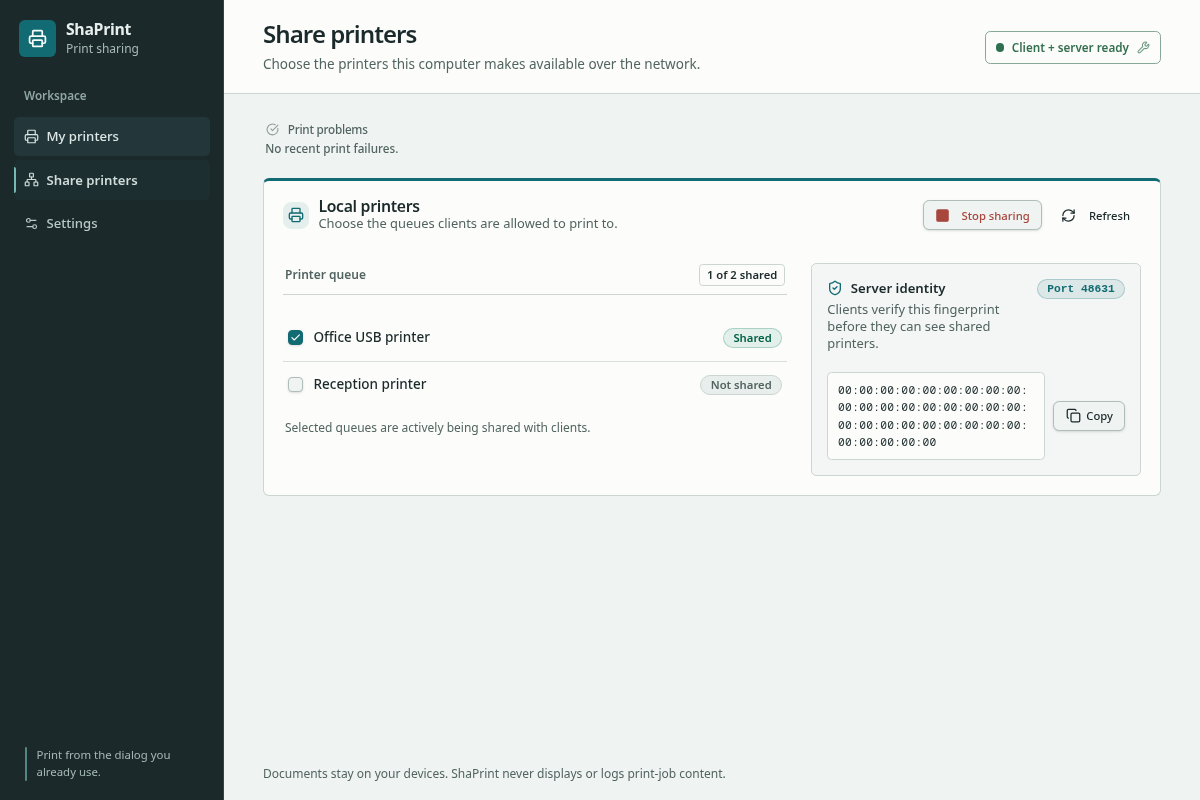
    Install ShaPrint on the server, configure a Network Channel, and select the shared printer.

  3. Connect your clients

    Install ShaPrint on each client, configure the same Network Channel, review the server identity, and add its shared printer.

An app for the everyday

Choose a printer.
Keep sharing under control.

See which local printers you're sharing and manage your client connections from the desktop app.

  • Select the printers your team can use.
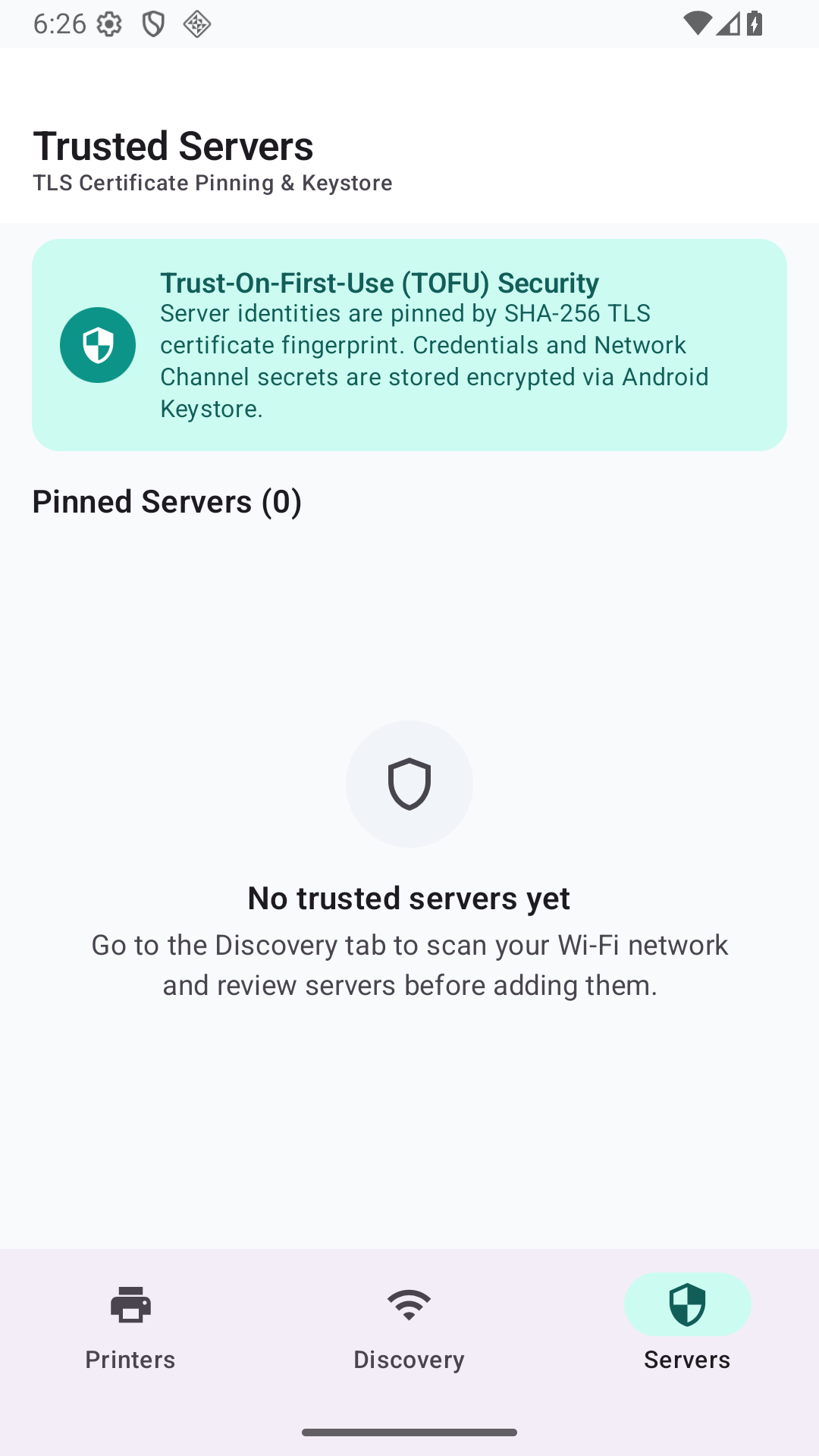
  • Review a server's certificate identity before trusting it.
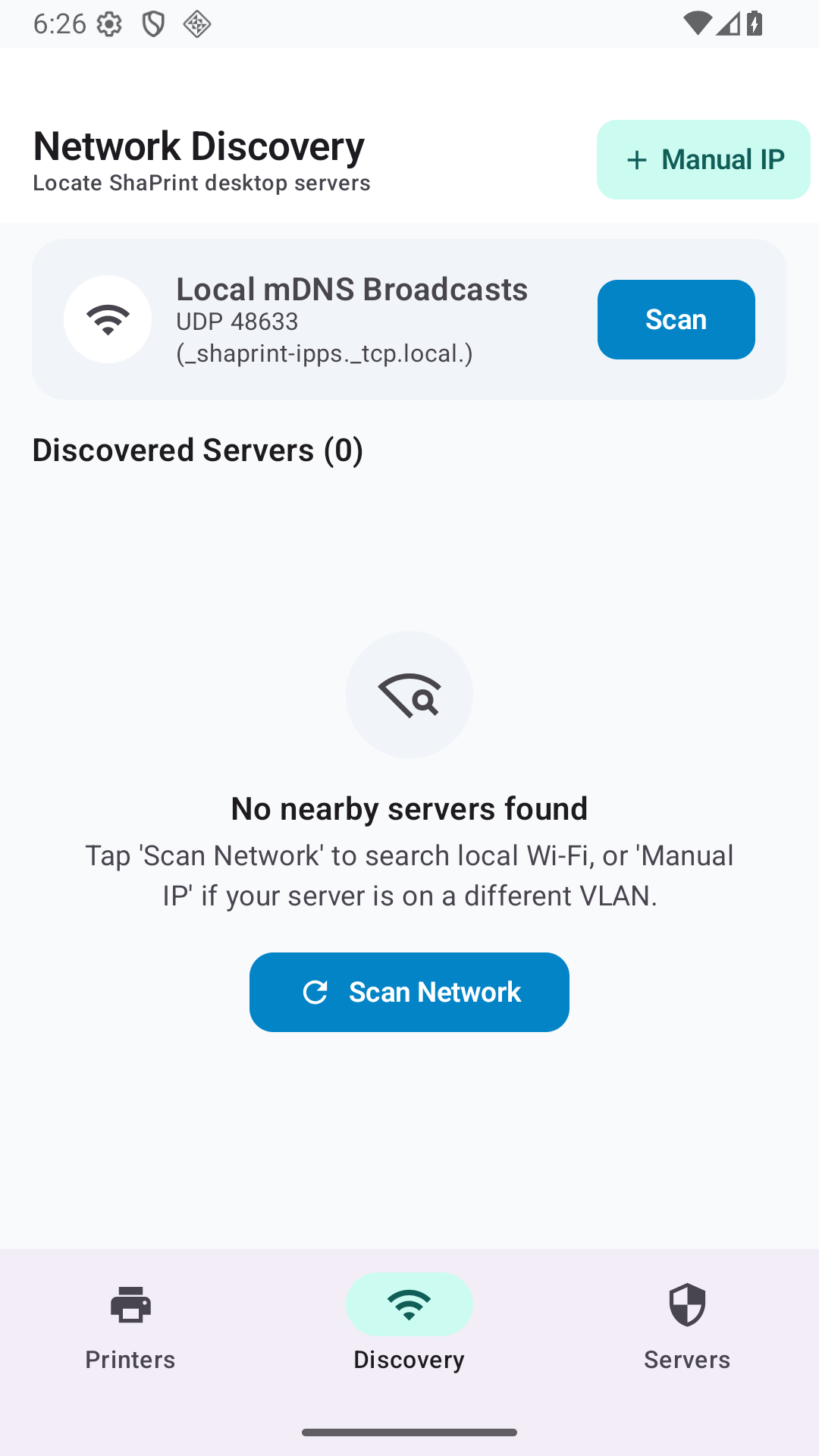
  • Find nearby servers or enter an address yourself.
Take a closer look at setup
ShaPrint desktop app showing the Share printers screen with an example local printer selected for sharing.
The desktop interface, shown with an example configuration. View full-size screenshot

ShaPrint for Android

The office printer.
On your phone.

Connect your Android phone to a shared printer through the same ShaPrint server your team already uses.

Explore the app
Get ShaPrint for Android

Your server stays on while you print.

ShaPrint Android app Network Discovery screen with no nearby servers found.
Network DiscoveryView full size
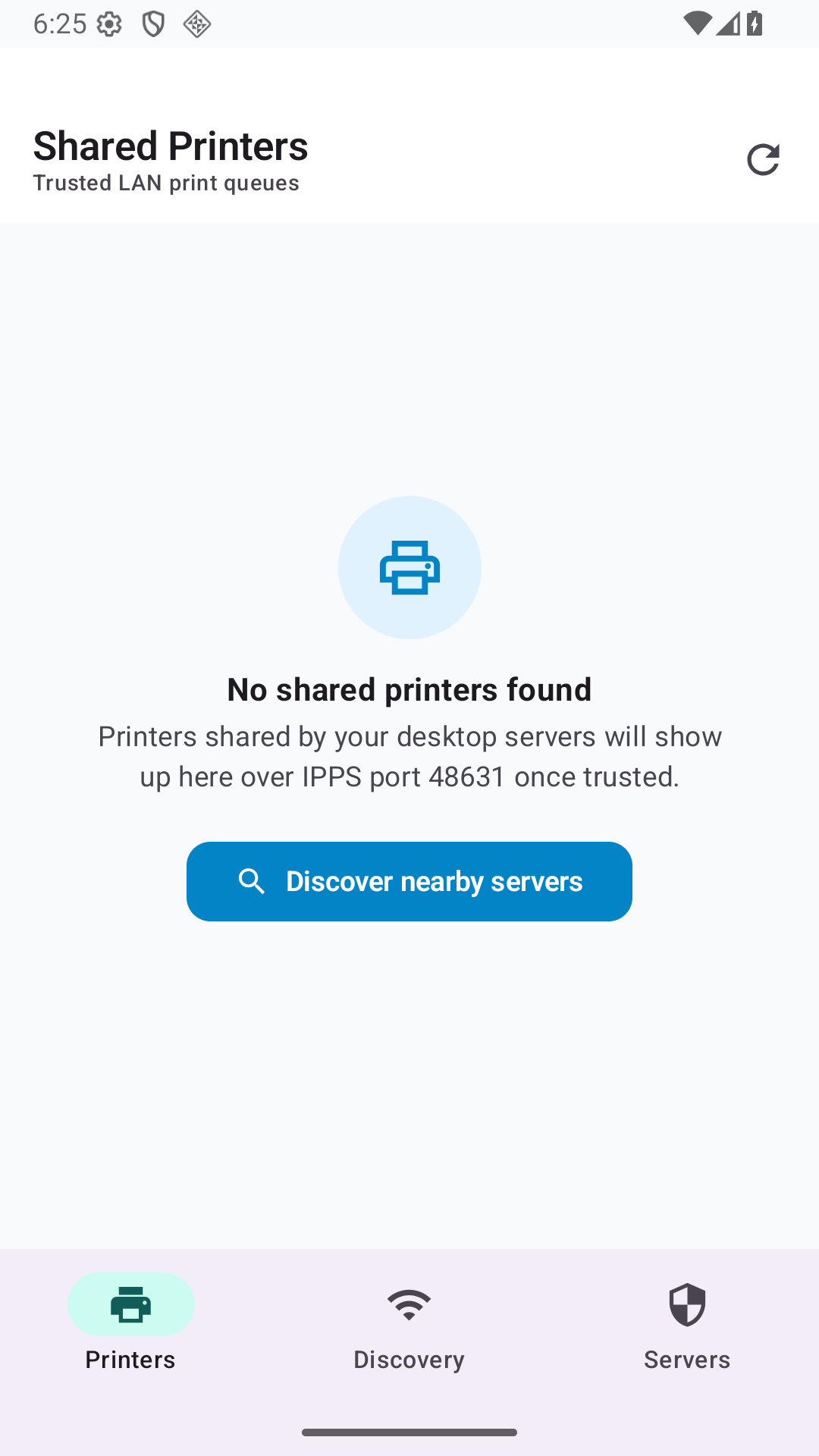
ShaPrint Android app Shared Printers screen before connecting a server.
Shared PrintersView full size
ShaPrint Android app Trusted Servers screen with no trusted servers yet.
Trusted ServersView full size

Actual app screenshots, before connecting a server.

Put your printer to work

Get ShaPrint.

Start with the Stable release. Install it on the server and on each desktop client.

Stable 3.4.4

Windows

For Windows 10 & 11, x64.
Share a printer or connect as a client.

Download .exe

Start here for a standard installation.

MSI installer

For managed Windows installation.

.msi

One app for both computers

On the server, select the printer to share. On each client, connect to that shared printer.

Set up your first server and client
Stable 3.4.4

Linux

Choose your distribution. All packages below are x86_64.

Debian / Ubuntu

Debian 11 & 12; Ubuntu 22.04 & 24.04.
Desktop app + system daemon.

.deb

AlmaLinux 9

Desktop app + system daemon.

.rpm

AlmaLinux 10

Desktop app + system daemon.

el10 .rpm

Desktop AppImage

Desktop interface only. Install the system daemon separately.

AppImage
Read Linux installation instructions

Printing from your phone?

The Android client connects to a ShaPrint server. Android 8.0+, direct APK installation.

Download Android 1.0.3

Files are hosted on GitHub. Release notes & all packages Looking for Nightly?

Before your first print

A few useful answers.

Have a particular setup in mind?
Read the setup guide

Will it work with my old USB printer?

It may, if the printer works locally with its installed driver on a supported server. ShaPrint renders print jobs through that driver. Built-in Wi-Fi is not required, but compatibility with every printer model is not guaranteed. Test your printer and the settings you need before rolling it out to your team.

Does the server computer have to stay on?

Yes. The server needs to be on, connected, and running ShaPrint with sharing enabled. A sleeping or switched-off server cannot handle print jobs.

Does this use Windows printer sharing?

ShaPrint uses its own IPPS print path rather than Windows SMB printer sharing. You still need a working local printer driver on the server. ShaPrint cannot resolve every driver, hardware, or network problem.

Can clients print across VLANs?

Yes, when the network allows clients to reach the server. Automatic discovery across VLANs depends on multicast routing or mDNS reflection. If discovery is blocked, enter the server address manually. ShaPrint does not bypass network isolation or firewall policy.

Do print jobs go through a cloud service?

The print path runs between your client and server over your network using IPPS, without a third-party cloud printing service. Downloads and app updates use Internet services.

How do I get help?

Start with the troubleshooting checklist. If the problem remains, check or open a GitHub issue. Share your operating system, printer model, and error code. Do not include your Network Channel, documents, or other sensitive information.

Keep the printer.
Let the team print.

Start with one server, one client, and a test page.

Download Stable